
Integration Guide: Cheetah Digital Event-Triggered Campaigns
Overview
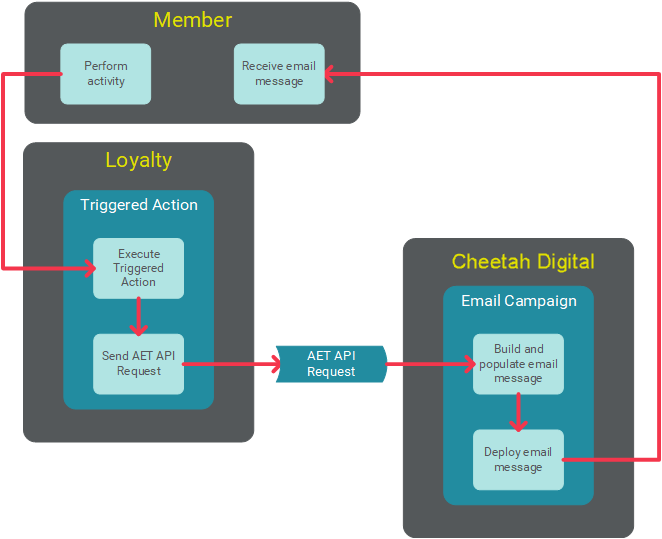
Loyalty integrates closely with Cheetah Digital, which allows you to use Member actions, such as enrolling in the program or completing a purchase, to automatically trigger the deployment of an Event-triggered Email Campaign within Cheetah Digital.
Requirements
Using Loyalty data or activities to trigger a Campaign in Cheetah Digital requires the use of the following assets.
Within Loyalty, you must configure:
-
Connection Profile: Connection Profiles are used to integrate Loyalty with other products, in this case, Cheetah Digital. The Connection Profile contains the necessary information to pass data from Loyalty to Cheetah Digital.
-
Triggered Action: A Triggered Action is a type of Rule within Loyalty. Triggered Actions are used to monitor certain types of changes to a Member Profile, and to then execute a specific action if a specific condition is satisfied.
Within Cheetah Digital, you must configure:
-
Email Campaign: You must create and launch an Event-triggered Campaign in Cheetah Digital that uses "Advanced Event Trigger" (AET) as the trigger type. The content of the Campaign can contain personalization Merge Symbols that are populated with values passed over from Loyalty in the API message.
-
Other Campaign assets: As with any Campaign in Cheetah Digital, you may need other supporting assets, such as Proofing Groups, Content Blocks, a Seed List, etc.
The following diagram depicts the process flow for using a Loyalty Triggered Action to execute an Event-triggered Campaign in Cheetah Digital.
Cheetah Digital: Create an Email Campaign
The first step in this use case is to build and launch the Event-triggered Campaign within Cheetah Digital.
Note: This article does not go into the full details of creating a Campaign. For additional details on topics such as using the Content Editor, building Filters and Seed Lists, or launching Proofs, please see the Cheetah Digital Help Center.
When configuring the Event-triggered Campaign, select the following options:
-
Type: Event-triggered
-
Channel: Email
-
Trigger: Advanced Event Trigger
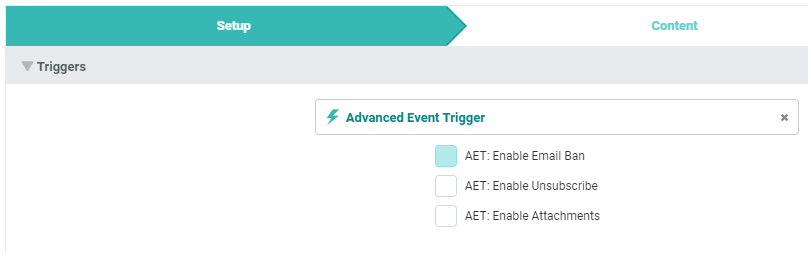
After configuring the Campaign and entering the content, you must launch the Campaign. Cheetah Digital will deploy this Event-triggered Campaign when an Advanced Event Trigger API request is made to execute this particular Campaign. Loyalty will submit AET API requests based on the configuration of the Triggered Action (see below) and corresponding Activity, Metric, or Tier processing.
Make a note of the following Campaign details, as this information is needed when you configure the Triggered Action within Loyalty:
-
Table: The Campaign source table.
-
Campaign ID: The "Running" Campaign ID. This value is generated when you launch a Campaign. Be sure NOT to use the Object ID or the Object Reference ID.
Both of these values can be found within the header bar of the Campaign.

Loyalty: Create a Connection Profile
Connectors are used to integrate the Loyalty platform with other Zeta applications, and with a wide range of third-party platforms. To integrate Loyalty with another platform, you must create a reusable asset called a Connection Profile. The Connection Profile contains all the information needed to manage the integration, such as API endpoints, login credentials, and so forth.
For details on how to create a Connection Profile, see Create a Connection Profile. When creating the Connection Profile, select the following options:
-
Connector Type: Cheetah Digital
A Cheetah Digital Connection Profile contains the configuration properties needed for Loyalty to connect to your Cheetah Digital account. For more information on these properties, see Connection Profile Configuration - Cheetah Digital.
Loyalty: Create a Triggered Action
Once a Cheetah Digital Connection Profile is configured, it can be used in a Triggered Action to create or update Member Profile data and to send email messages via Cheetah Digital.
For more information on creating a Triggered Action, see Create a Triggered Action.
When configuring the Triggered Action, select the following configuration options:
-
Action Type: Select Send Cheetah Digital Email.
The Send Cheetah Digital Email Action type allows you to specify the Event-triggered Campaign within Cheetah Digital that you want to deploy. For more information on configuring a Send Cheetah Digital Email Triggered Action, see Triggered Action Type - Send Cheetah Digital Email.
After you have created and configured the Triggered Action, you must publish it. See Publish a Triggered Action for more information.
After you publish the Triggered Action, you must deploy Triggered Action metadata. See Deploy Triggered Action Metadata for more information.
